 SitWith
Sit with your Macs and PCs from one app.
Connect to a Mac with Apple Screen Sharing or to a Windows PC with Remote Desktop, in one native Windows app. Open as many as you need, side by side or full screen.
Free. For Windows 10 and 11. No account to create.
Your Macs and PCs in one place
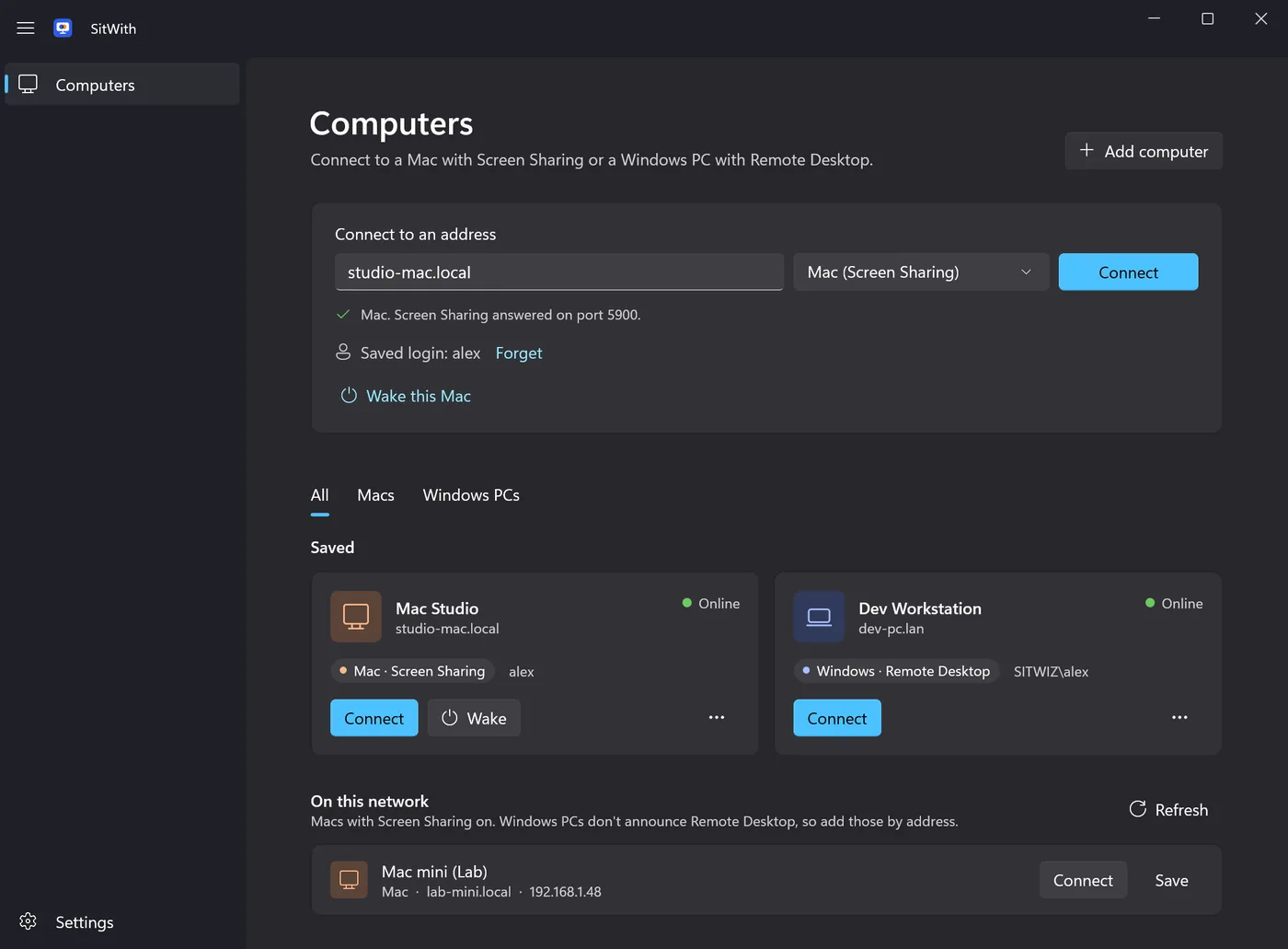
Save each computer once, then connect with one click.
- Finds Macs on your networkMacs with Screen Sharing turned on show up by themselves through Bonjour. Windows PCs are added by name or address.
- Wakes a sleeping MacSitWith remembers each Mac’s hardware address, so the Wake button can bring it out of sleep.
- Several computers at onceOpen Macs and PCs side by side in their own windows, or put any of them full screen on any monitor.
Fast and sharp on a Mac
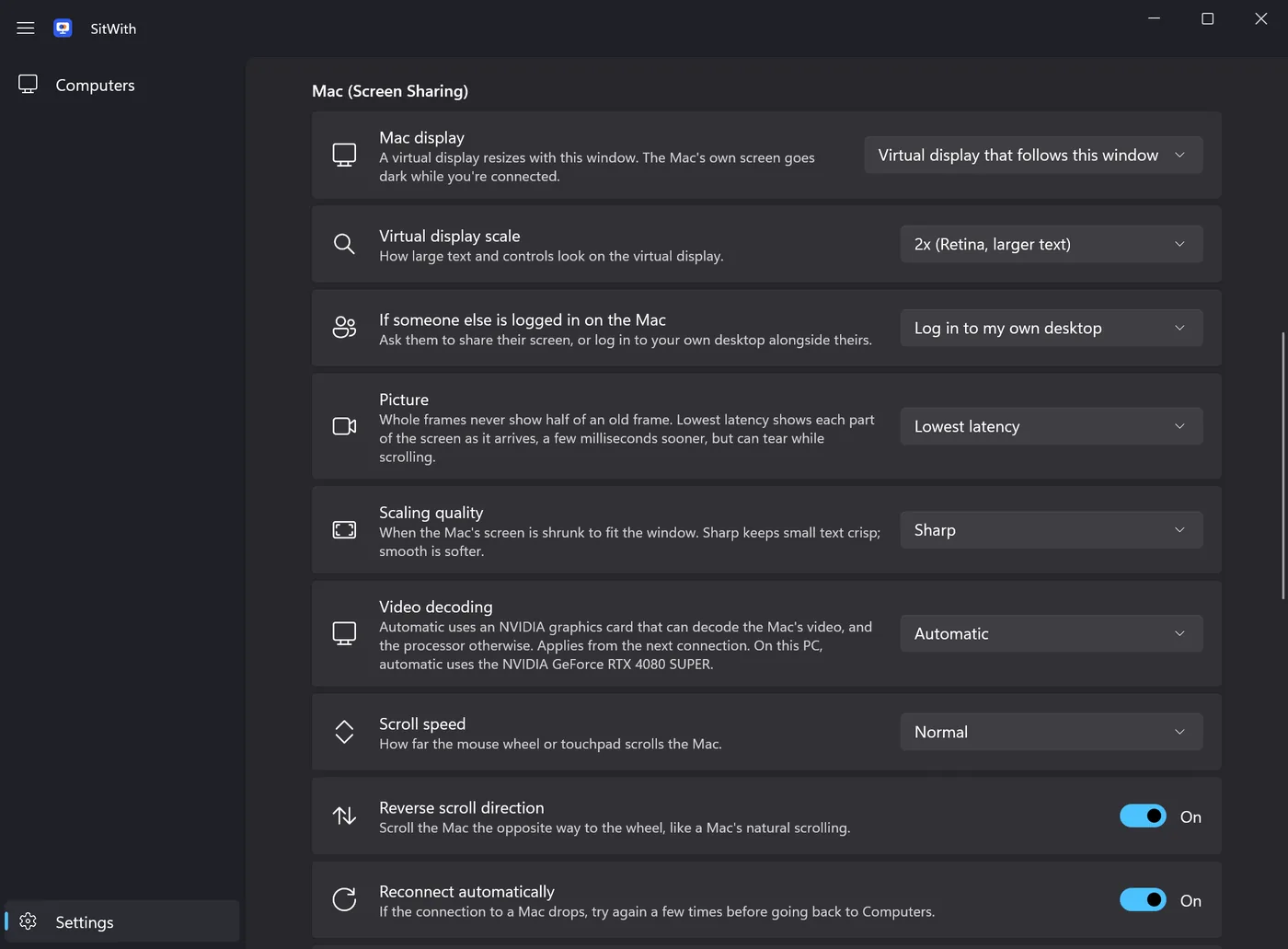
SitWith speaks Apple’s modern high-frame-rate Screen Sharing, not slow, uncompressed VNC.
- 60 fps HEVC 4:4:4 videoDecoded on your NVIDIA graphics card, or on the processor when there isn’t one. Small text stays crisp.
- A Retina virtual displayThe Mac gets a display that resizes with your window. You can connect to its own screen instead.
- Your own desktopIf someone is already signed in on the Mac, share their screen or open your own separate macOS desktop.
Remote Desktop on Windows’ own engine
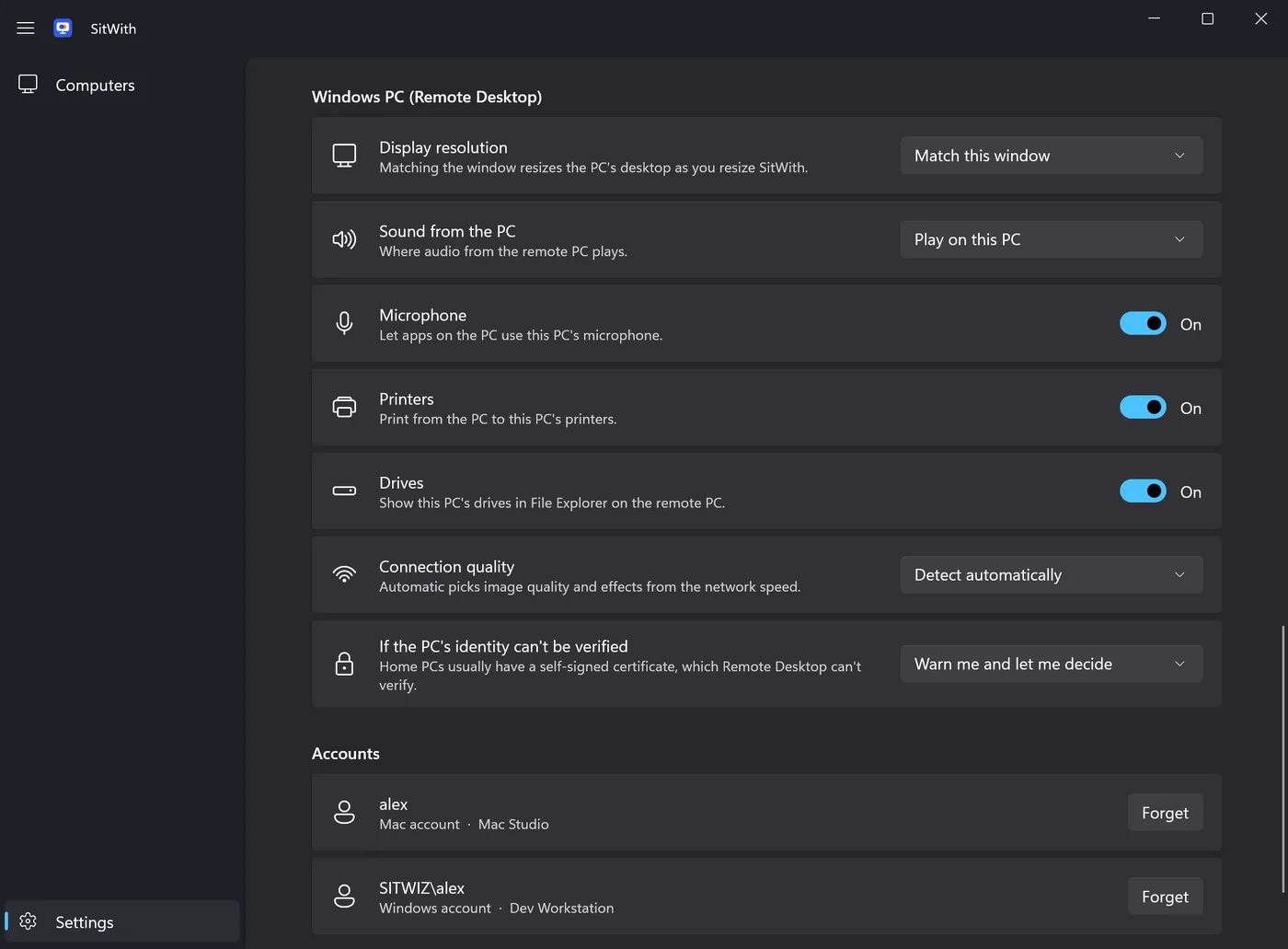
For PCs running Windows Pro, Enterprise or Server, using the Remote Desktop engine built into Windows.
- A desktop that fits the windowThe PC’s desktop resizes as you resize SitWith.
- Sound, microphone, printers and drivesHear the PC on this one, let it use your microphone, print to your printers, and open your drives in its File Explorer.
- Remote Desktop GatewayReach PCs behind a company gateway as well as PCs on your own network or VPN.
Built to feel like sitting there
Shortcuts and copy and paste go where you expect them to.
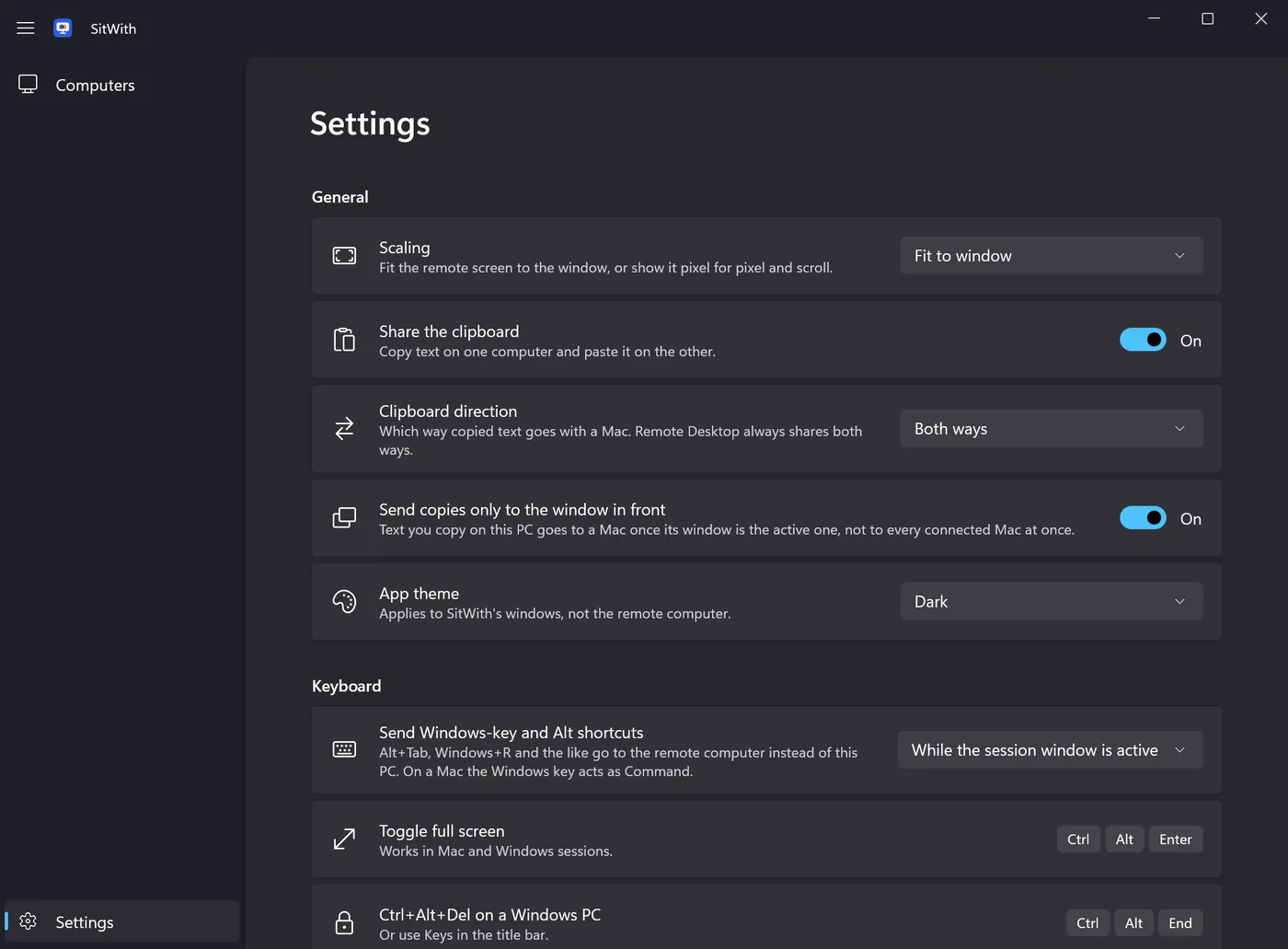
- Shortcuts reach the remote computerWhile a session window is active, Alt+Tab, Windows+R and the like go to the Mac or PC instead of this one.
- The Windows key is CommandOn a Mac, the Windows key acts as Command.
- A clipboard that goes both waysCopy text on one computer and paste it on the other. With several Macs open, copies only go to the window in front.
Private by design
SitWith only talks to the computers you connect to, and to your local network to find Macs and wake them. Sit Wiz LLC never sees your computers, logins or screens.
Questions about privacy? Email bill@sitwiz.com. The sitwiz.com privacy policy covers this website.
What you need
- Windows 11 (22H2 or later) or Windows 10 (version 1809 or later), 64-bit
- For a Mac: Screen Sharing turned on in the Mac’s Sharing settings
- For a Windows PC: Windows Pro, Enterprise or Server with Remote Desktop turned on
- An NVIDIA graphics card is optional. Without one, Mac video is decoded on the processor
Help and support
Email us with the kind of computer you were connecting to and what happened. If a connection fails, SitWith writes the details to Windows Event Viewer and to a session log. Settings has an Open logs folder button, so you can attach the log.
bill@sitwiz.comYour Macs and PCs, one click away
SitWith is free on the Microsoft Store for Windows 10 and 11.